



If you can’t hear your buddies or send your calls for help in PEAK, you’re not alone. Many players have reported facing issues with the voice chat feature in this climbing survival adventure. Whether your mic isn’t picking up or it’s an internal hiccup, we’re here to help.
PEAK doesn’t have a minimap, so you can’t really “track” your friends easily. To make things trickier, its maps are procedurally generated, changing every time you start a new game. Voice chat is your only way to gauge a party member’s location, but if that breaks, you’re completely in the dark.
Don’t worry, though—if you’re unable to make the voice chat work in PEAK, here are a few fixes to help eliminate the issue.
Table of contents
PEAK voice chat error: How to fix
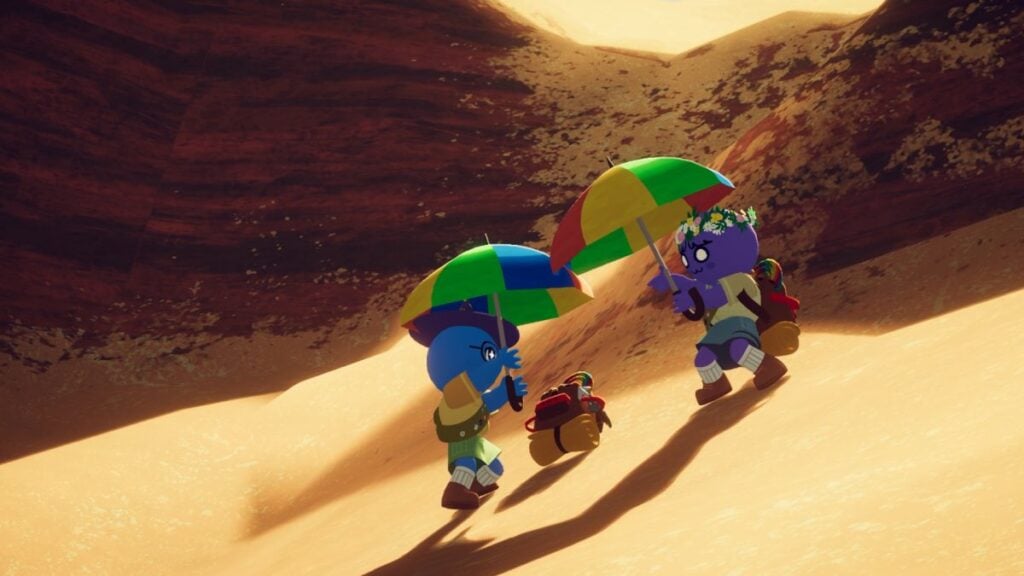
PEAK uses a proximity-based voice chat, so the volume of other players depends on how close they are to you. If you can’t hear them—or they can’t hear you—it might just be because they’re too far away. But if you still can’t hear them even when they’re practically breathing down your neck, that’s when you should start worrying.
Voice chat issues in PEAK can arise from a variety of causes, anything from internet problems and hardware malfunctions to incorrect PC or in-game settings, or outdated drivers. Sometimes, it’s on the developer’s side, like server hiccups or a bug. The workarounds below will help you rule out common culprits and fix them, or pinpoint an internal hiccup and take steps accordingly.
Restart the game
If you can’t communicate with your friends via voice chat, try restarting PEAK before loading onto the island. Since you can’t always rejoin a session if you disconnect mid-game, it’s best to wait until the run ends, or risk sitting out until your friends die before you can jump back in.
Check your headset and microphone
This one’s an obvious step, but make sure the hardware isn’t faulty. You can try reconnecting the audio devices to your PC to eliminate minor issues. If you’ve got a spare headset or microphone lying around, you can plug them in to confirm.
Check your PC audio settings and drivers
Make sure you have the right speaker and microphone selected in the Windows audio settings. In the right-most side of the taskbar, select the speaker icon and then beside the volume bar, select the sound output icon. You should be able to check the selected audio output and input devices here. Even if the right device is selected, choose a different output and then switch back—this trick may help eliminate a detection issue.
At the same time, make sure Windows is updated to the latest version. This confirms that you have up-to-date audio drivers as well. You may also want to keep your graphics drivers updated.
Check your in-game settings
While in the game, open Menu, then Settings, and then the Audio tab. Here, make sure the game is detecting the microphone you’re using. Check if you’re set to Push to Talk. If so, change it to Automatic and see if it fixes the problem. Also, make sure the Voices sound column is set to 1.0 (highest).
Verify integrity of game files
Some players were able to fix the voice chat not working issue in PEAK by verifying integrity of game files. To do this, open the library page of PEAK and then select the cog icon. Go to Properties and then Installed files. Here, click on Verify integrity of game files. Let the process complete and then launch the game.
Avoid using certain programs or audio suppression setting
The developer has flagged certain audio programs like Voicemod and VoiceMeeter as potential triggers. If you use these tools, it may help to uninstall them. Also, if your headset has a setting for background noise suppression, we recommend turning it off.
Change launch option
Open your Steam library and then the PEAK page. Click on the cog icon on the right and then select Properties. Here, under the General tab, click on the dropdown beside Selected launch options and select either Vulkan or DX12, whichever was not selected by default. Now, try launching the game and check if the voice chat issues persist.
It’s likely an internal problem
If none of the above fixes your voice chat dilemma in PEAK, it’s likely an internal bug or a server hiccup. You can check with your friends or PEAK’s community pages for similar complaints to confirm. In case of an internal error, there’s nothing you can do except wait. You can use third-party voice chat platforms like Discord too, but that takes away the proximity-based fun.
You can also file a bug report to help the developers identify the trigger that’s affecting your scenario and potentially offer you a curated solution to the PEAK voice chat not working error faster.





Published: Aug 13, 2025 11:51 am