


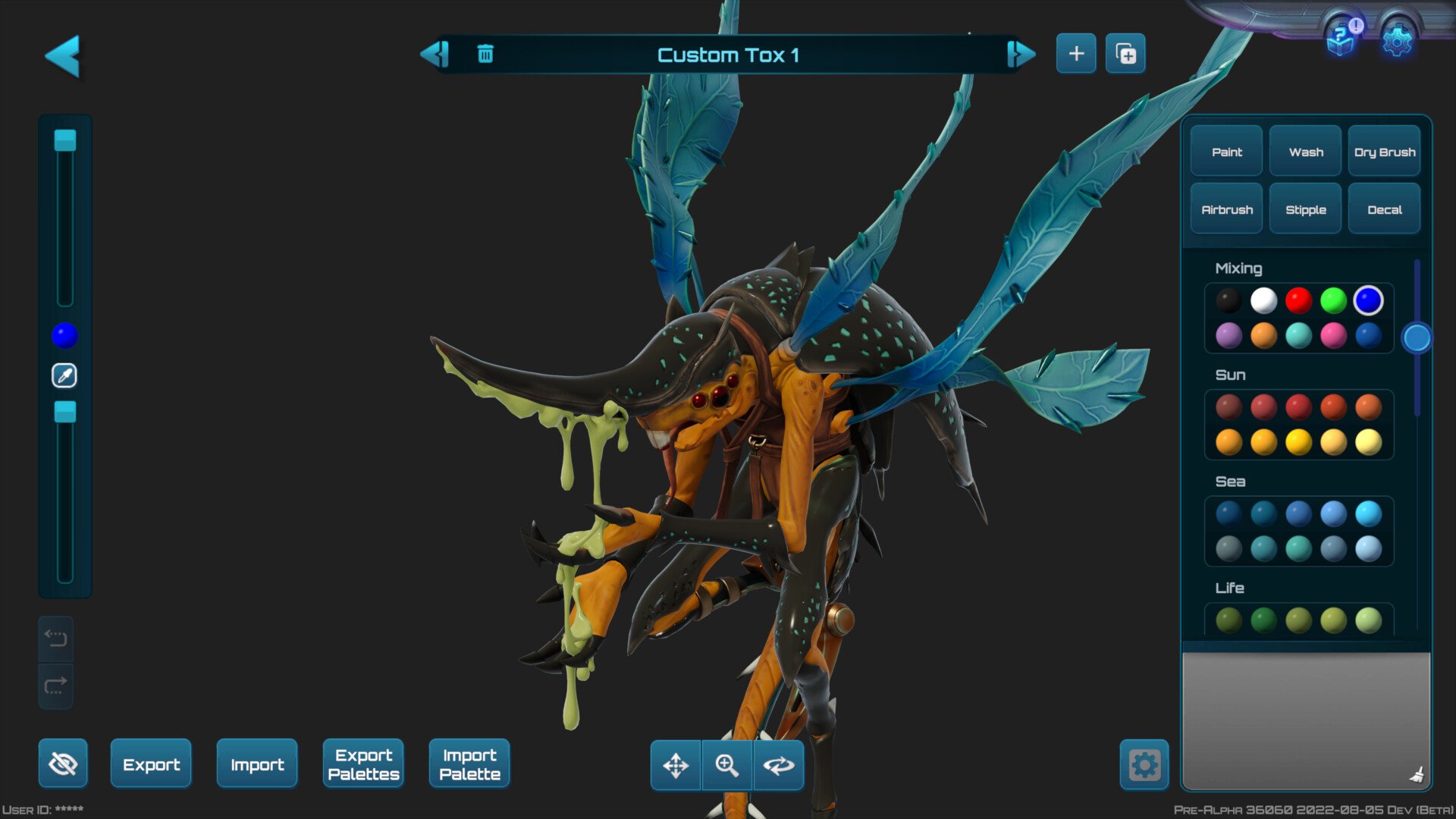

Moonbreaker has just been released and promises players a tabletop experience that feels similar to playing with actual miniatures. One of the main features of the game is allowing players to fully customize their figures with a variety of different colors. If the game doesn’t provide the color you need, you can always mix a new one for yourself.
Here’s all the info you need to know about how to save custom colors in Moonbreaker.
How to save custom colors in Moonbreaker
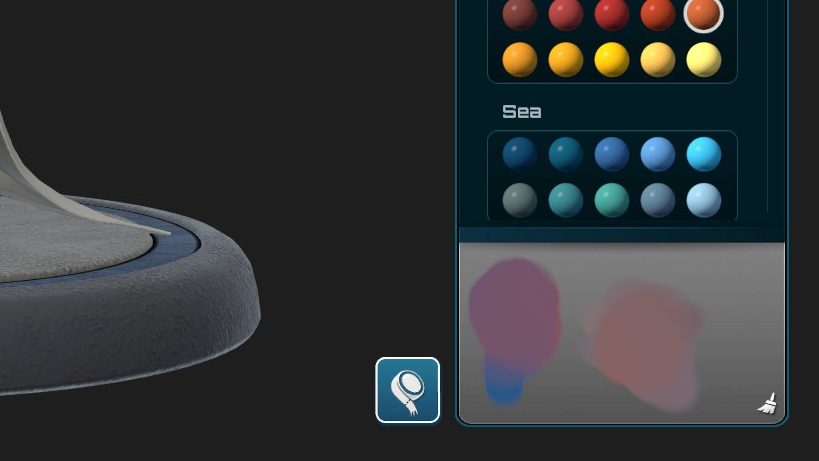
From the painting menu, you’ll notice that there is a grey area underneath the paintbrush and color selector. In this spot, you can add different colors to the grey area and then mix it with any other color you want.
Once you have a color you like, you can click the “Custom Palette” option at the bottom of the color picker. This will allow you to click on any color in the mixer and add it to your palette. If you want to clear the mixer and start over, you can do so by clicking the icon of the broom in the bottom right part of the screen.
There is a section of colors in the selector that is specifically labeled for mixing, so players can start there before experimenting with the other shades. If you decide you want to get rid of one of your custom colors, click the icon of the pencil in the square and then the X under the color you want to get rid of.
That’s all you need to know about how to save your custom colors to your palette in Moonbreaker.








Published: Sep 29, 2022 07:49 pm