



VALORANT now comes with a Replay system that automatically records matches and lets players run them back. While most of its features are fairly easy to understand, some tools can appear a bit complicated, which is where a guide like ours may come in handy.
Despite being one of the most requested features for years, Replays were only introduced to VALORANT with patch 11.06 in Season V25, Act Five. Riot Games had several valid reasons for the delay, but now that the tool’s finally here, it’s time to make the most of it.
Here’s a complete VALORANT Replays guide.
Table of contents
VALORANT’s Replays feature availability
Replays are currently available on VALORANT PC only in all regions except China. The console version receives the feature with patch 11.10, while China gets it with patch 11.07b.
How to download replays in VALORANT
At the time of writing, Replays are only available for Unrated, Competitive, Swiftplay, and Premier modes. After a VALORANT match ends, while in the details page, look for a download (downward arrow) icon. Click on it to download the replay.
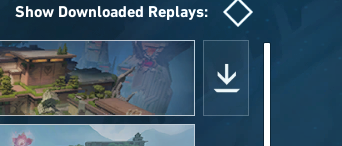
If you want to download replays for eligible old matches, go to your Career page, and you should see a download (downward arrow) button on the right side of a match card. You can only get replays for matches played in the live patch, starting in patch 11.06 from Sept. 16.
All Replay features in VALORANT, explained
Once you download a replay in VALORANT, click on the play button to watch it. And when it opens up, you’ll be able to rewatch the entire match with a horizontal Replay HUD to control your experience.
Here’s what each button from the left lets you do:

| Button name | Function |
|---|---|
| Pause/Play button | Use it to pause or play the replay. |
| Rewind | Click to rewind the replay by five seconds. |
| Fast forward | Click to fast forward the replay by five seconds. |
| Round skip | Click on the right or left arrow to jump to a round. |
| Speed | Choose a speed setting (slow down up to 0.1x or speed up to 8x) for the replay. |
| Change camera view | The people icon lets you view through a player’s perspective. The camera icon is a third-person free observer mode. |
| Replay setting | This will open additional settings to improve your Replay experience. |
| Eye icon | Toggle it on to view the Replay UI, or off to get rid of the horizontal bar. |
While watching a replay, hit the setting icon on the UI bar to enable or disable the following additional settings:
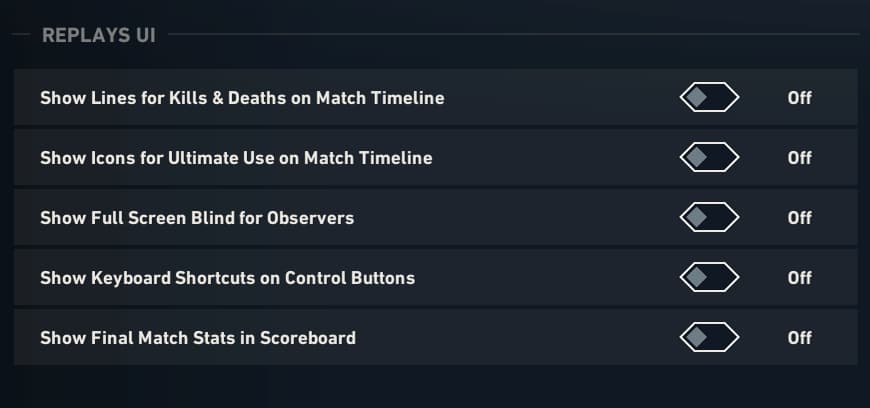
For more Replay settings, you can go to the in-game settings and then open the Viewing tab. Here, you’ll find new ways to customize your “viewing” experience, including custom matches and replays.
While Riot hasn’t teased any upcoming new features, players can expect more use cases of the Replay system to drop in the future.
Important Replay keybinds for VALORANT
To access all features of your VALORANT Replay seamlessly, make sure you’re aware of the following keyboard shortcuts:
| Key | Function |
|---|---|
| Space | Play/Pause |
| Left arrow key | Skip back five seconds |
| Right arrow key | Skip forward five seconds |
| T | Toggle Replay UI |
| N | Show Combat Report |
| . | Toggle Player Loadout visibility |
| Scroll button (mouse) | Toggle cursor |
| Esc | Show game menu or exit |
| V | Toggle Camera Mode |
| Mouse Right Button | Observe previous player |
| Mouse Left Button | Observe next player |
| 1 | Observe first player |
| E | Fly up |
| Q | Fly down |
Can you download or share replays in VALORANT?
No. At the time of writing, there’s no way to share your VALORANT replays with other people, or make clips out of them.
Technically, you have to “download” a replay to view it. But by doing that, you’re not saving it to your PC; it’s only available to watch via the game client.
Can you use replays to report cheaters in VALORANT?
Unfortunately, replays aren’t a reliable way to prove that a player was cheating. According to Riot, players in a replay video may sometimes appear to move or aim in a way that looks unnatural. But this is likely due to client and server ping differences, and doesn’t mean a player’s cheating. So, it’s best to use the in-game reporting system for this.
That said, you can definitely prove that a player was throwing or sabotaging your VALORANT match. So, even if they use an autokey script to bypass the AFK system, you’ve got the proof you need using the Replay system without having to record the entire match with a third-party tool.






Published: Sep 18, 2025 08:04 pm