


Over the years, die-hard CS:GO players have gotten into the habit of using a 4:3 aspect ratio in their favorite first-person shooter.
It may not make much of a difference when it comes to gameplay—arguably, it’s better off sticking with the default 16:9, but that doesn’t stop them from using it.
The Counter-Strike 1.6 days have rubbed off on many players, leading to pros and pub-stompers alike stretching their screens to kingdom come or sporting two large black bars.
In VALORANT, Riot Games’ Counter-Strike-esque tactical shooter, there’s no option to play with a 4:3 aspect ratio. The developers are actively against players using it and have intentionally prohibited it. But if you really want to play with a stretched screen when you get access to the beta, or you miss your black bars, there’s an easy way around it.
How to get stretched resolution or black bars in VALORANT
If you’re desperate to play with 4:3 stretched, and you’re using an NVIDIA graphics card, open your NVIDIA control panel from your desktop, and navigate to the “Display” subsection.
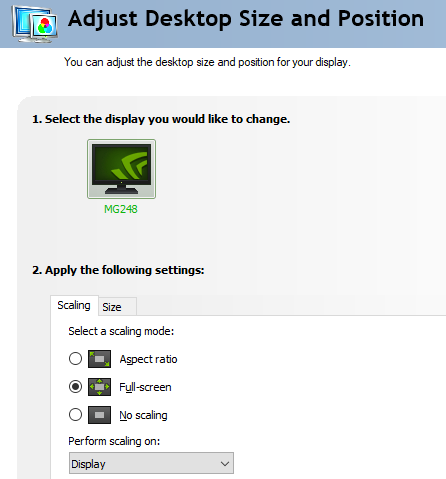
From there, find the second-to-last option, “Adjust Desktop Size and Position,” and select Fullscreen under “Scaling.” If you want to play with black bars instead, choose the “Aspect Ratio” option.
When you next boot up a game of VALORANT, you should now have either stretched resolution or black bars. If you don’t, and you’re left scratching your head, simply exit the game, go back into the NVIDIA control panel, find the “Perform scaling on” drop-down menu, and select “GPU.”


Published: Apr 8, 2020 01:28 pm