



Battlefield 6’s built-in FPS counter helps you track frame output in and out of matches for smoother gameplay. Unfortunately, DICE (developer) doesn’t make it all that easy to find or enable.
Battlefield 6 has just entered open beta, with the full launch scheduled for October 2025. The beta is free to play, but only on select dates. While reporting bugs is optional, this period is a great opportunity to flag performance issues before release—and the FPS counter makes spotting those hiccups much easier.
If you’re struggling to find and show the FPS counter setting in Battlefield 6, this guide has everything you need to know.
How to enable FPS counter in Battlefield 6
If you’ve played old Battlefield games, enabling the FPS counter was pretty simple: just toggle the Show FPS option on from the Networking settings. In Battlefield 6, however, it’s hidden under the name “Performance Overlay.”
To see the FPS counter in Battlefield 6, follow these steps:
- Open Settings by hitting the cog icon in the topmost horizontal bar.
- Open the Graphics tab.
- Now, look for the Advanced option under the Graphics section (first section under the Graphics tab). Select it to modify.
- Now, look for the Performance Overlay option and select Simple or Extra to enable it. Go for Simple if you want just the frame information. Go for Extra if you want information about your system and display to show up as well.
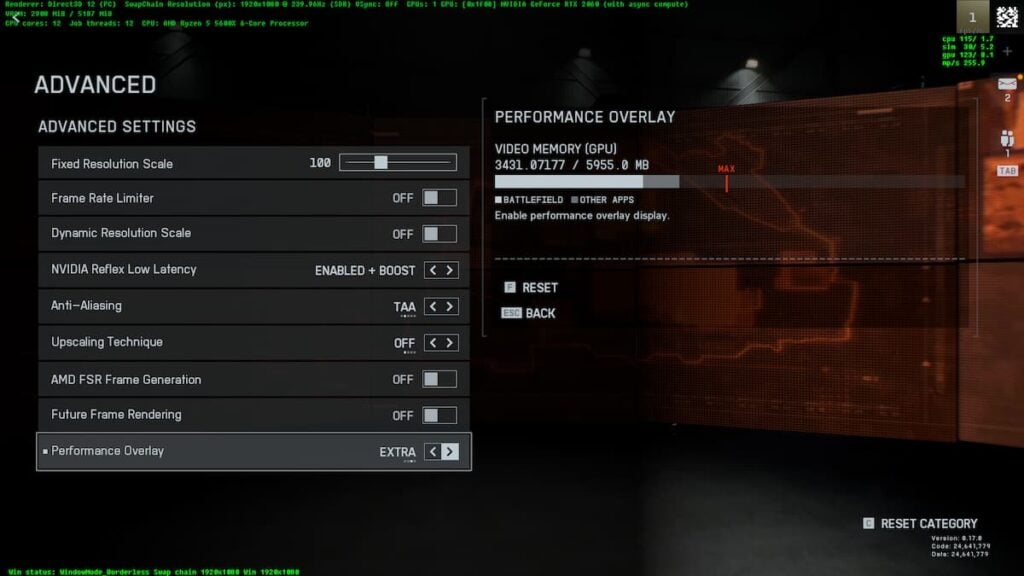
That’s it. You now have the FPS counter or Performance Overlay enabled for Battlefield 6.
Alternatively, you can also use a console command to get the FPS counter in Battlefield 6 (only available on PC). For this, follow these steps:
- Open Settings by hitting the cog icon in the topmost horizontal bar.
- Open the System tab and enable Command Console under the Setup section.
- Now, go to the homescreen and hit the tilde key (~).
- In the text box, type “PerfOverlay.DrawFps 1” and hit Enter. This enables the simple version of the FPS counter.
- To disable it, you can type “PerfOverlay.DrawFps 0” in the console and hit Enter.
If you’re unable to get any of these methods to work for you, it’s likely a bug. We recommend restarting the game to fix minor hiccups that might be the cause. If that doesn’t help either, you can submit a bug report to DICE for further help.


Published: Aug 7, 2025 11:10 am